Create Course
Go to Admin->Course Manage
The Course Management feature allows administrators to handle all operations related to courses. This includes creating, editing, and organizing course content to ensure a seamless learning experience.
- Key Features:
Add Course:
- Create a new course by providing details such as the course title, description, and other metadata.
Edit Course:
- Update existing course information, including the title, description, and other settings.
Course Curriculum:
- Organize the course content by adding sections, lessons, and modules to structure the learning flow.
Course Quiz:
- Create and manage quizzes for the course to assess learner progress.
Course Media:
- Upload and manage media files such as videos, PDFs, and images for the course.
Extra Settings:
- Configure additional settings for the course, such as prerequisites, pricing, and visibility.
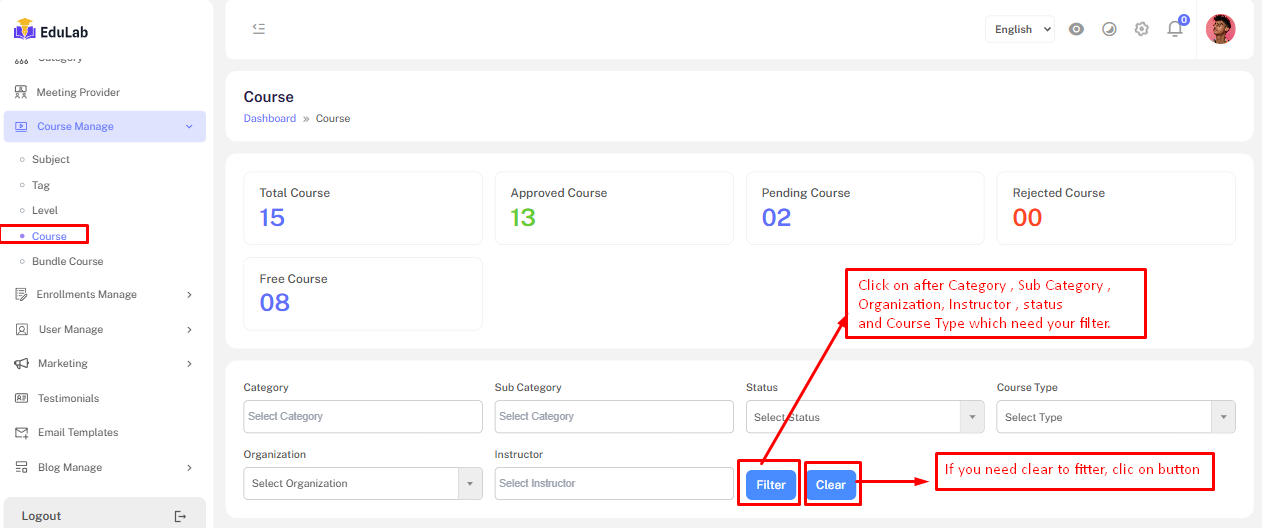
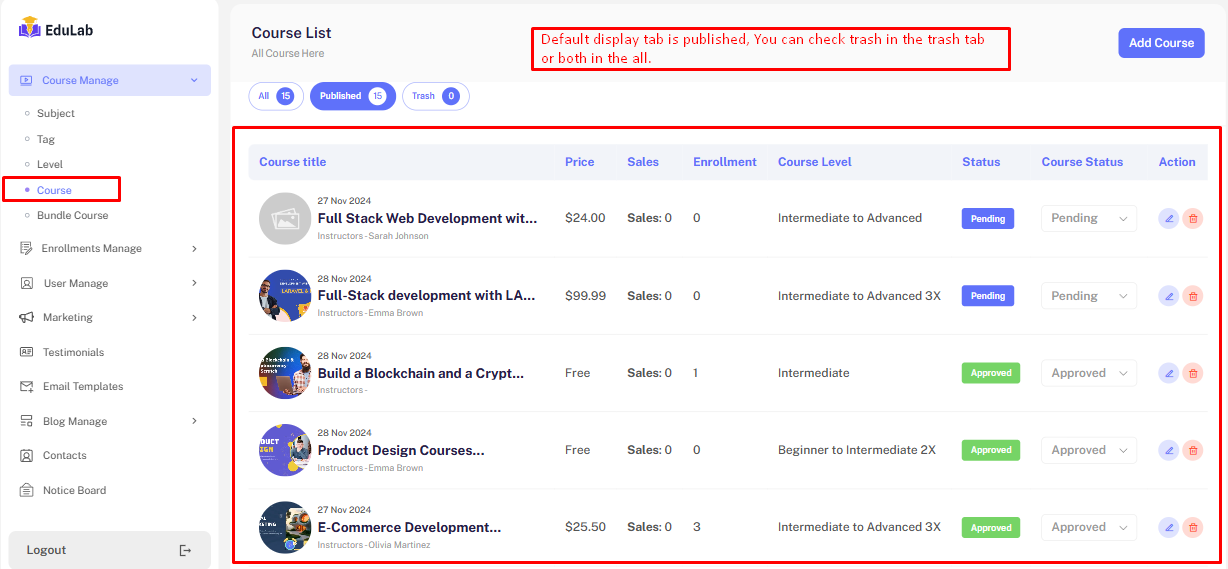
Create a new Course
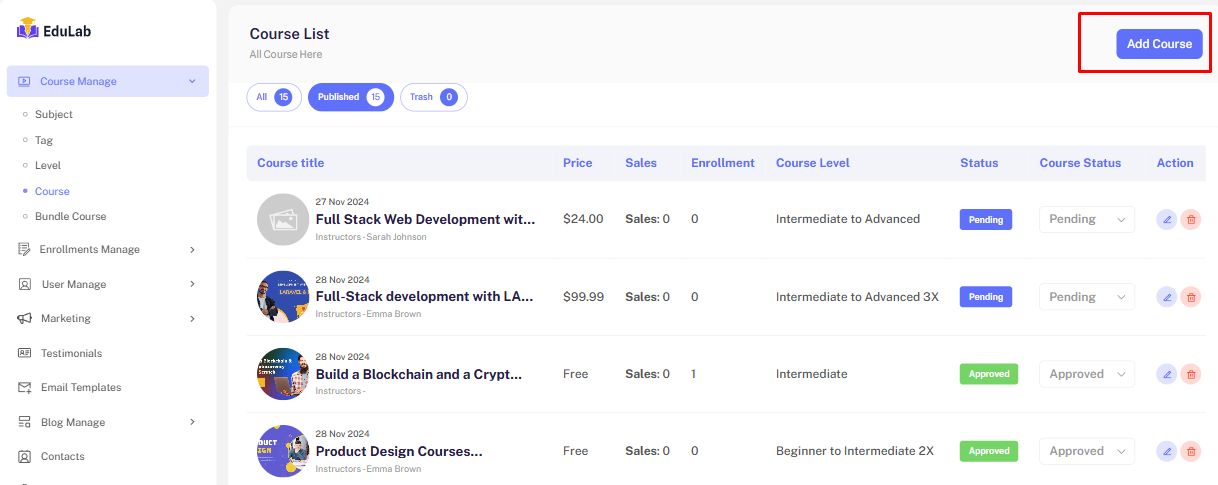
Step 01: Click on Add New button
Step 02: Fill the information and click the Save & Continue button
Course Title
Course Category
Instructor
Courses level
Language
Time Zone
Course duration
Short Description
Long Description
Thumbnail
Course demo video
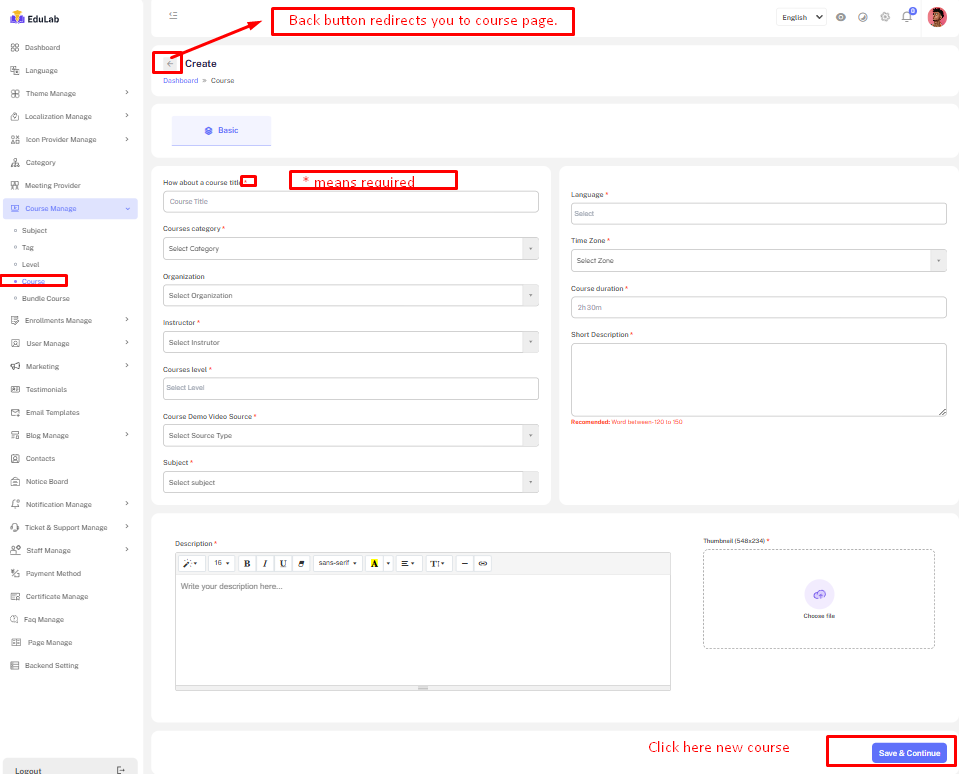
After click Save & Continue and also click edit button from course manage page. You will see same phase.
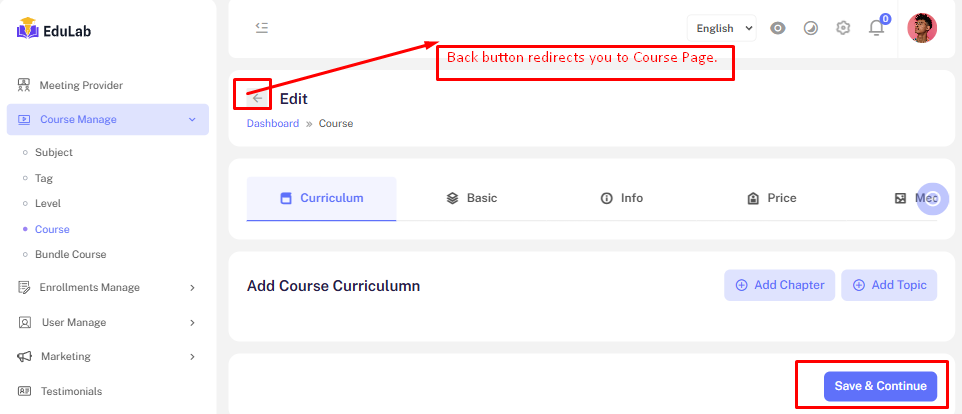
Curriculum :
Click on Add Curriculum
Additional Course Information :
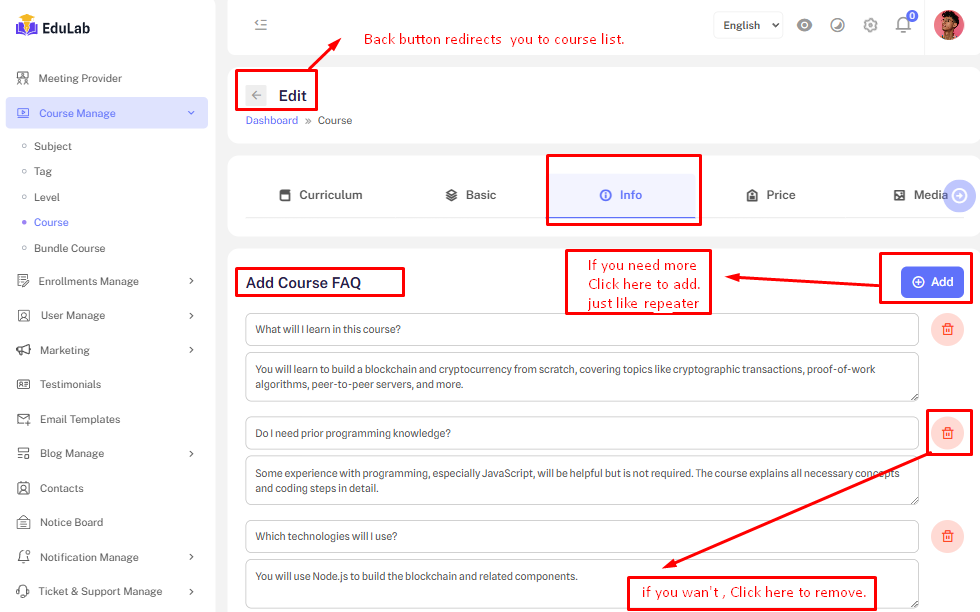
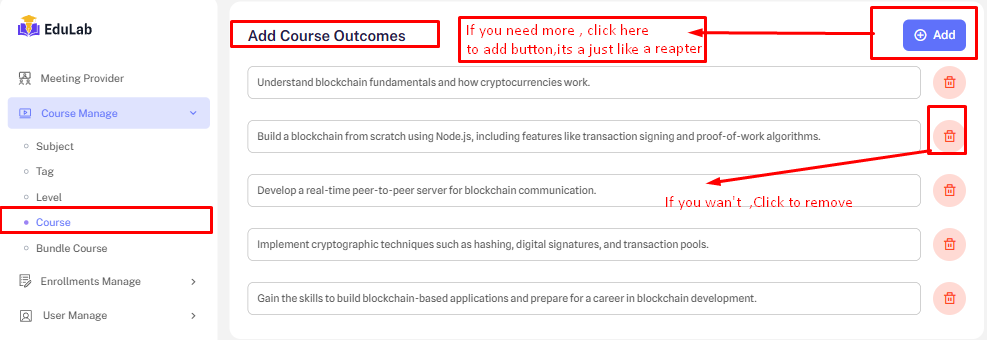
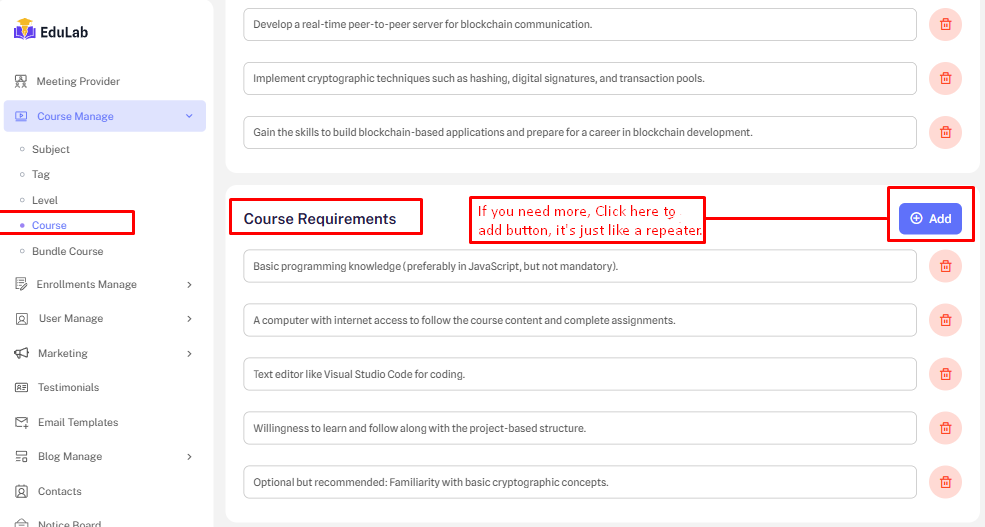
After Creating a Course by Basic Information . Need to provide course info here. Because the students can understand the course more effectively before purchasing and Enrolled . Here, the course creator has to provide course FAQs, requirements, outcomes and Course Tag.
Course FAQ
Course Outcomes
Course Requirements
Create Tags
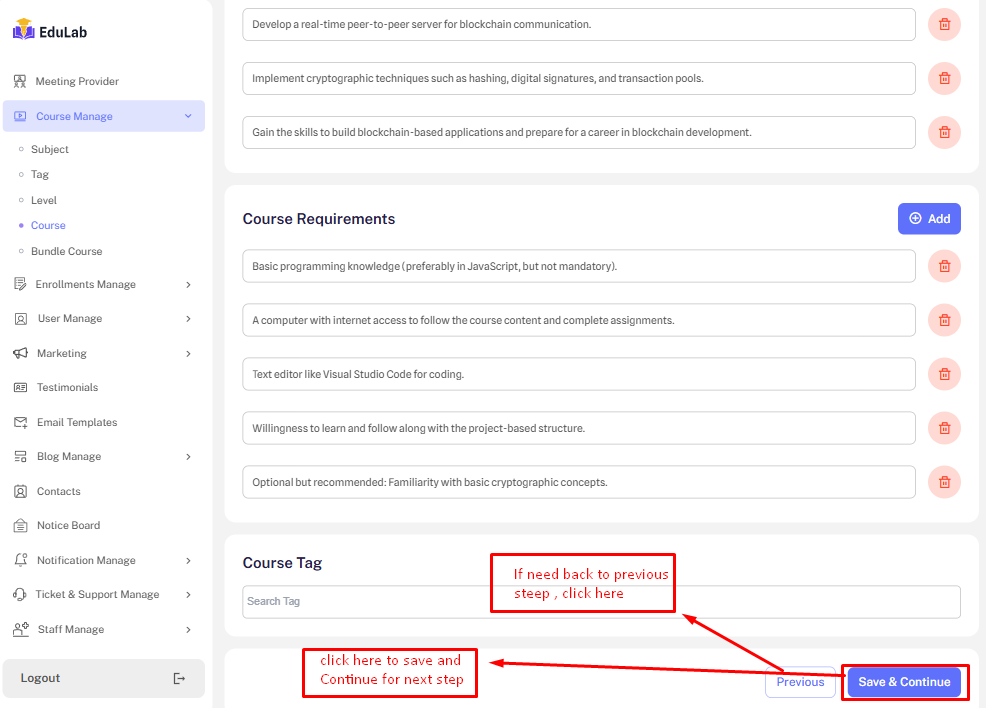
Course Tags
If You not found tags name , Click here to add new tag button . 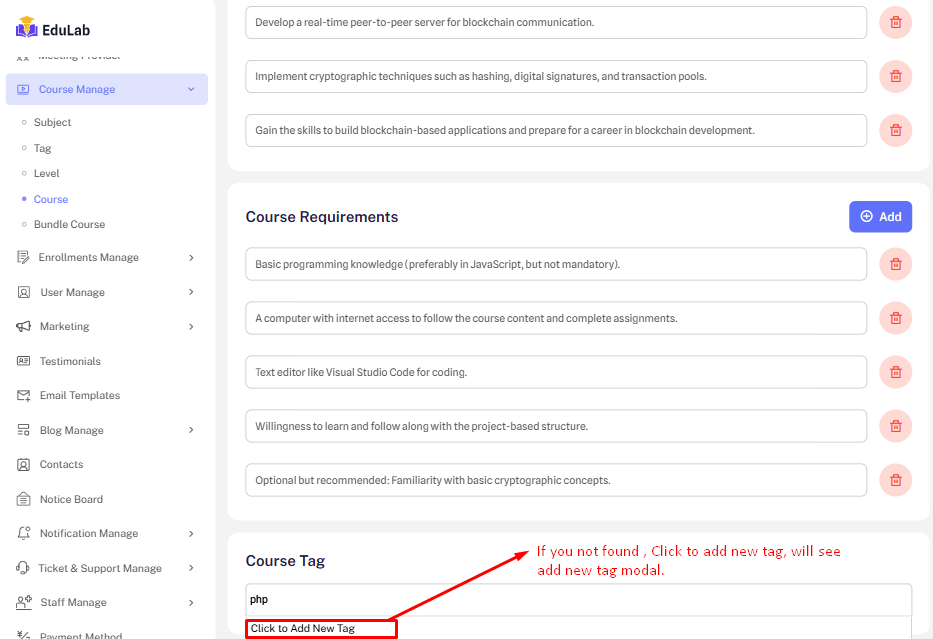
Course Tags
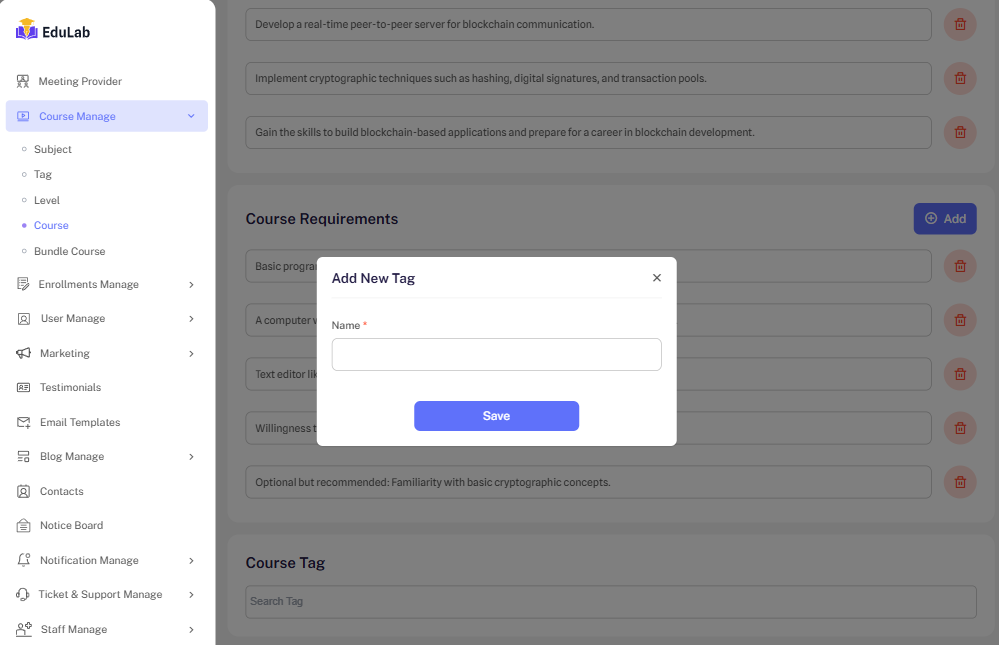
If You not found tags name , Click here to add new tag button .
After create new tag name , again you search by new tag name , you will see and add.
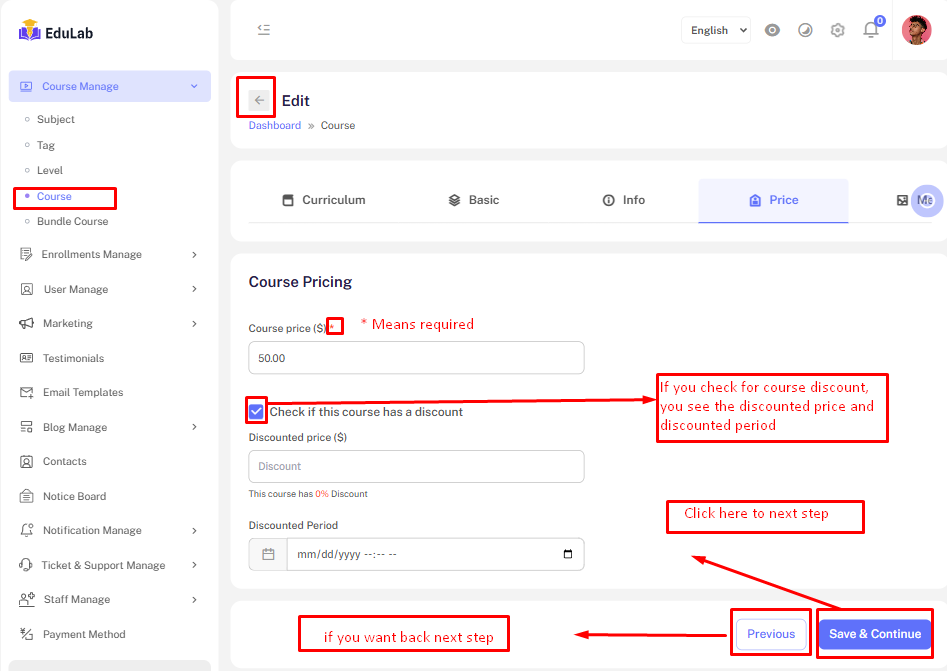
Pricing
The instructor can set the price of your course. Also can a create discount. Now provide the course price. If want to sell your course at a discount, then input the discount price and Discount Period.
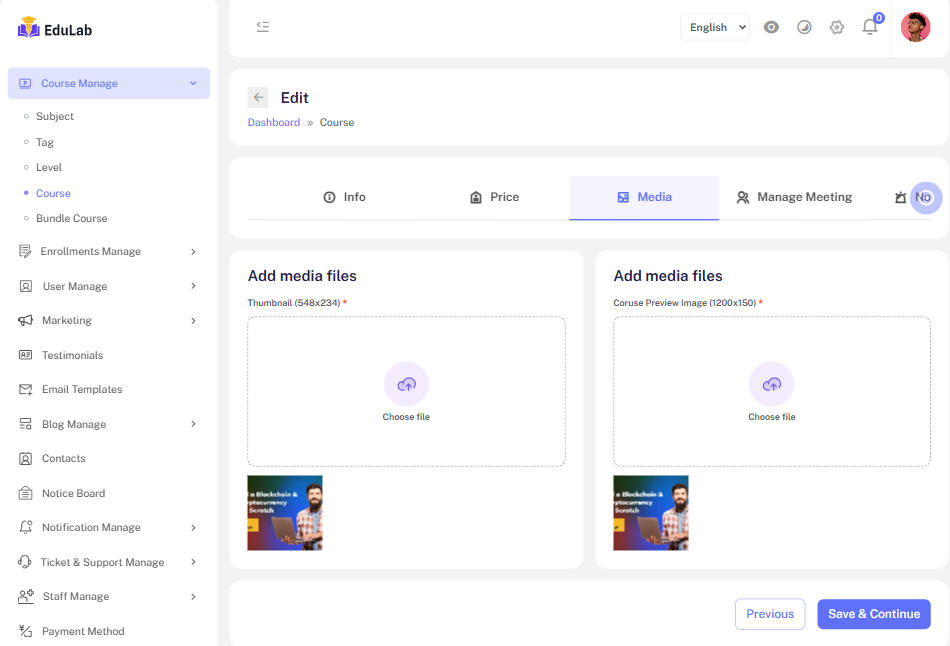
Media
Now, provide the media of the course here. The course creator can use: course thumbnail and Course Preview.
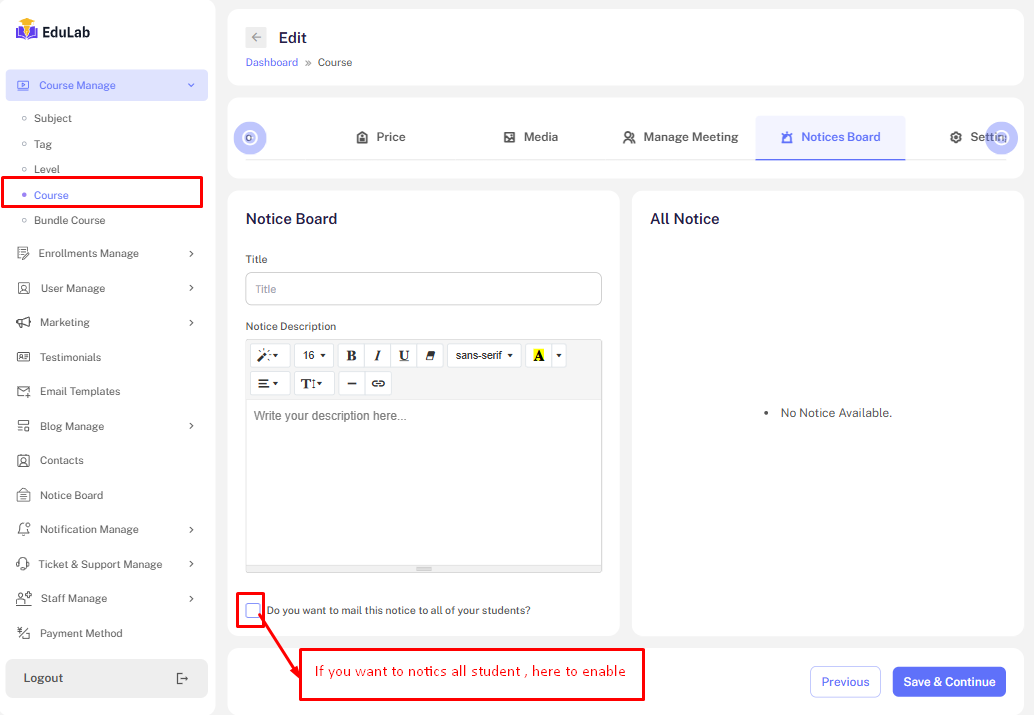
Notice Board
If you want to notice purchases and enroll all users.
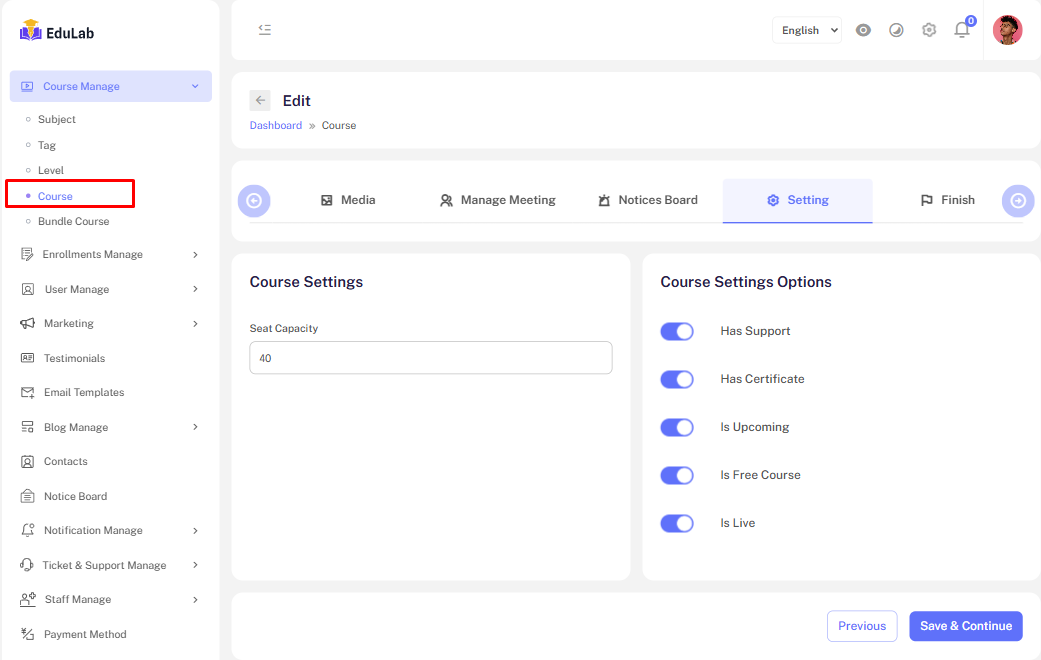
Setting
The instructor can set the setting your course. Such as
     Access Days
     Seat Capacity
     Has Support
     Has Certificate
     Has Course Form
     Has Subscription
     Wait List
     Upcoming
     Free Course
     Downloadable
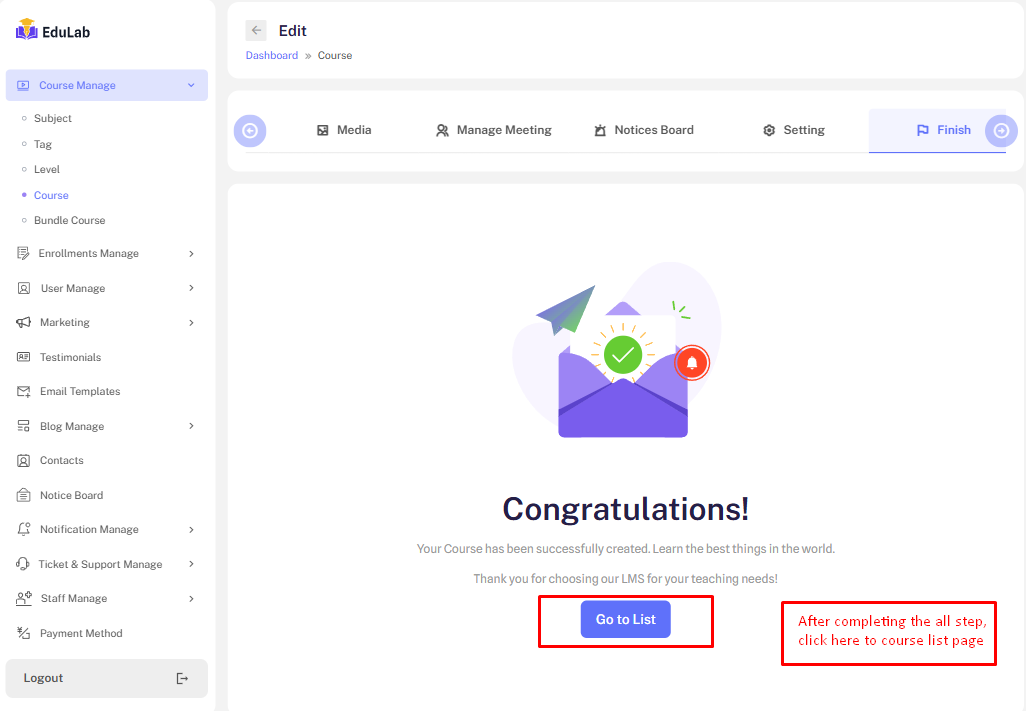
Finished
After Completing the all step, then click here to course list.
Delete
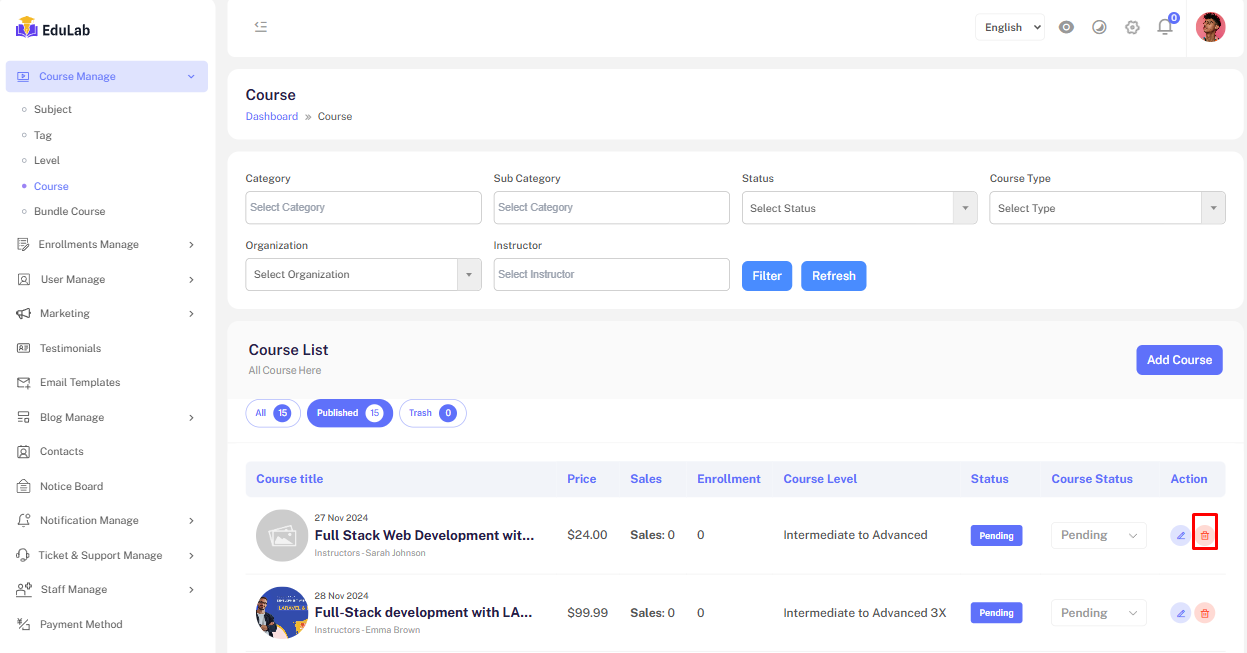
Step 01: Click the delete button
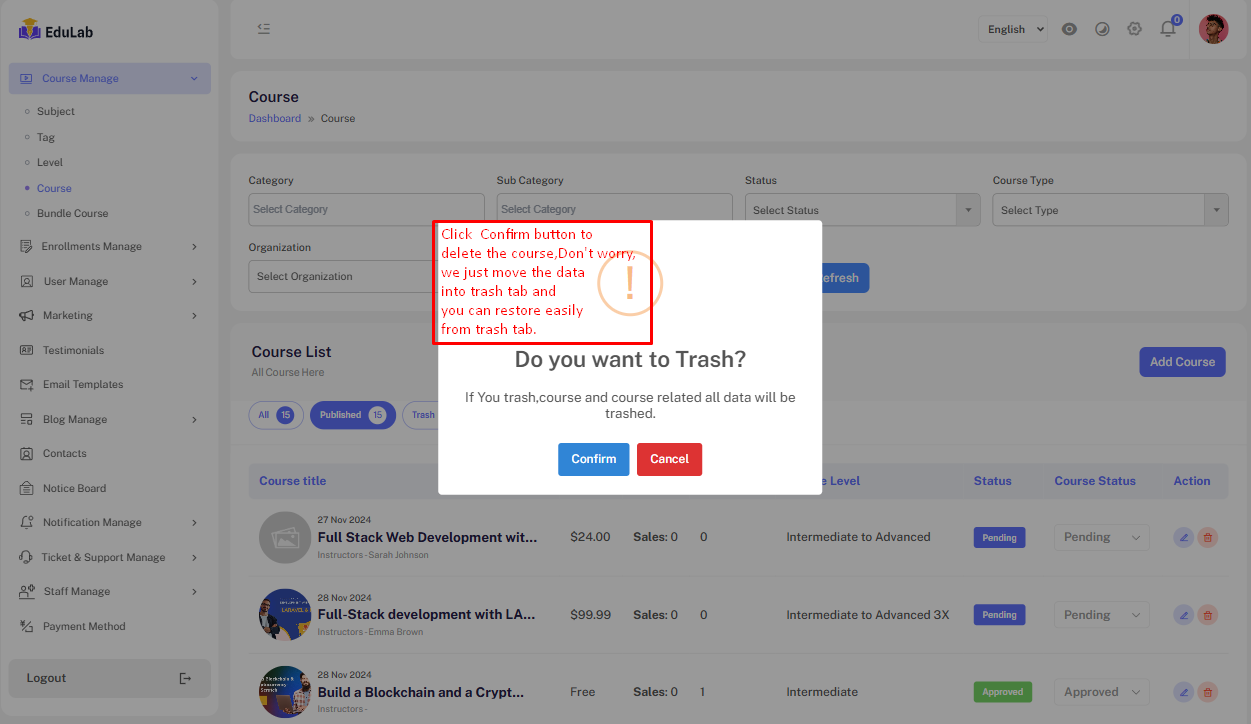
Click confirm button to delete the the course. Don't worry we just move the data into trash and you can restore easily from trash tab.
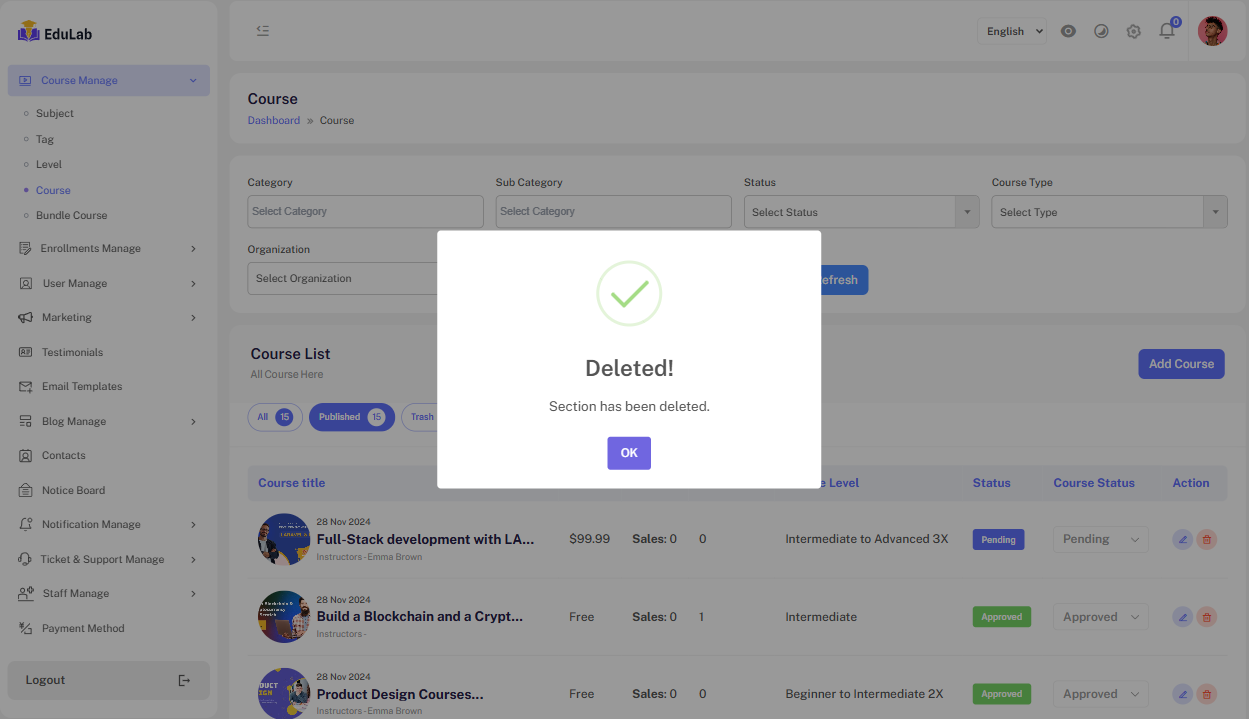
Click the OK button to see the update
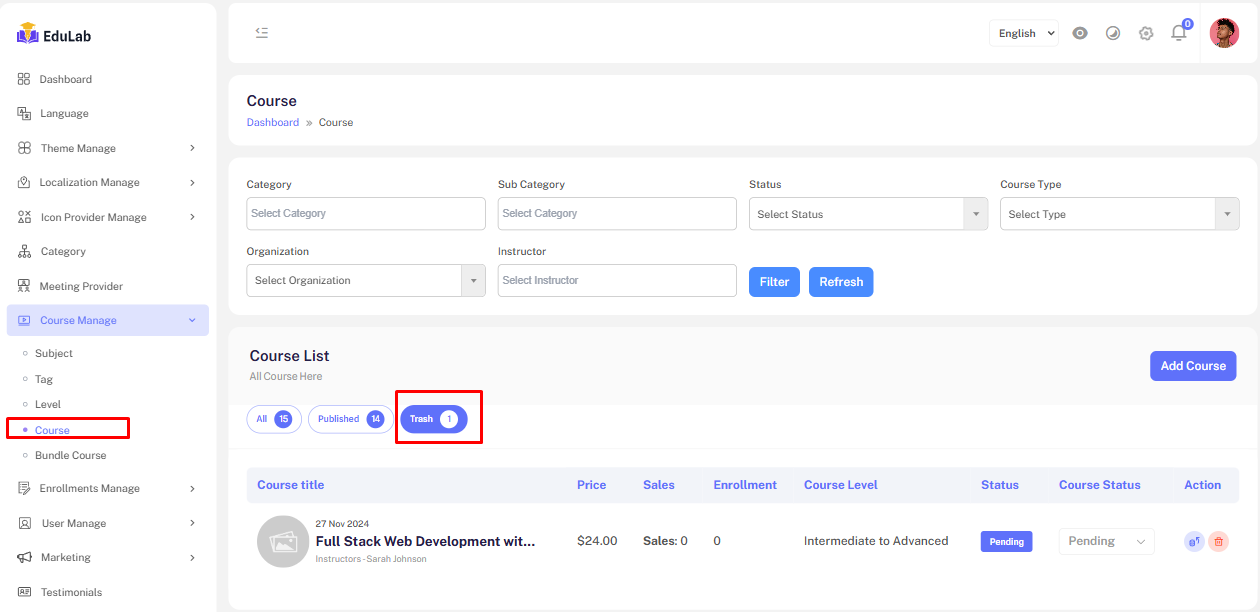
Trash
Click on trash button to see trashed courses.
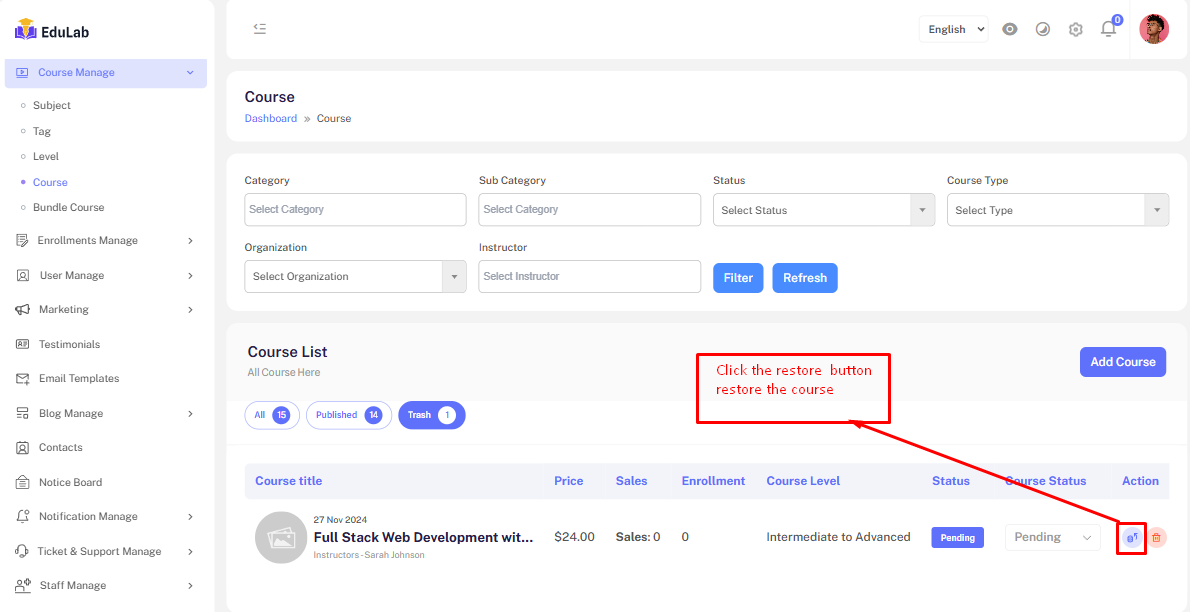
Restore
Click on the restore button to restore and republish the deleted course.
Permanent Delete
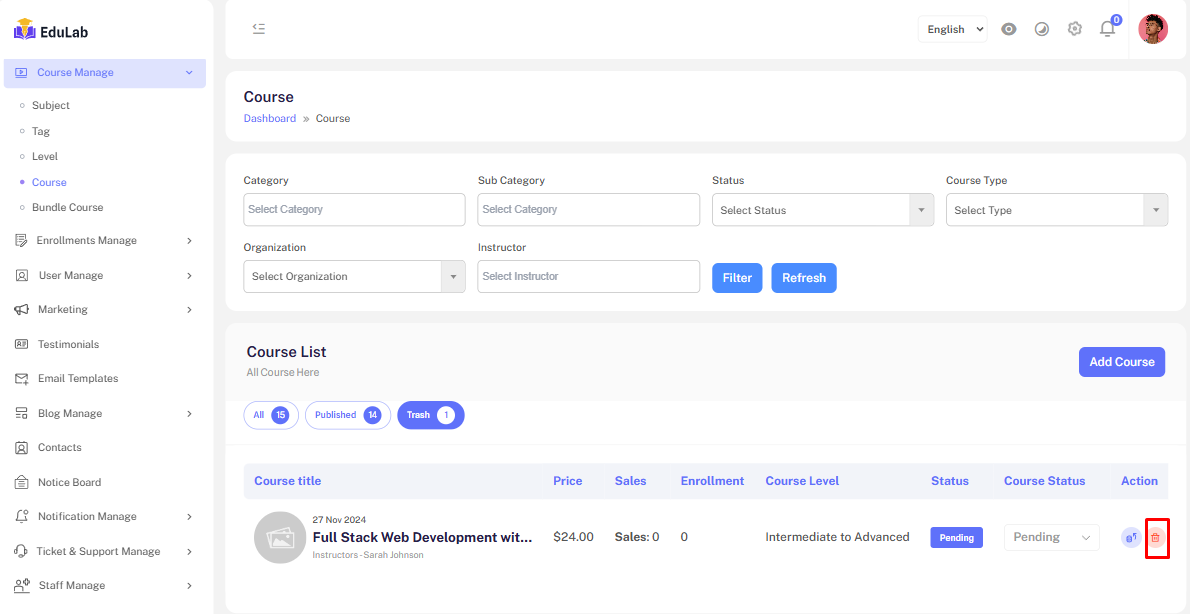
Step 01: Click on the delete button
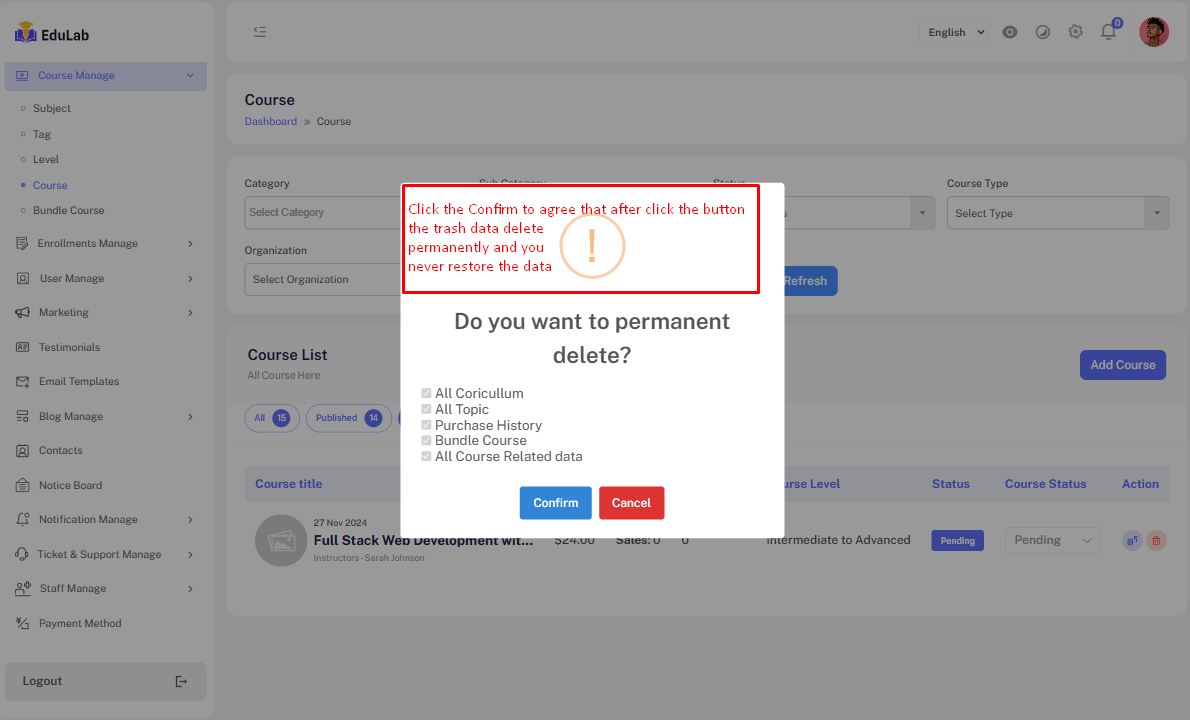
Click the confirm button to agree that the deleted data will destroy for forever and you never restore them.
Successful message. Just simply click on OK button to redirect to published Course.