Billing Management
The Billing section gives administrators full control over tenant subscriptions — view status, suspend, reactivate, cancel, or force-renew any subscription.
Navigate to Admin → Billing → Billings.
Subscription List
The billing list shows every subscription across all tenants.
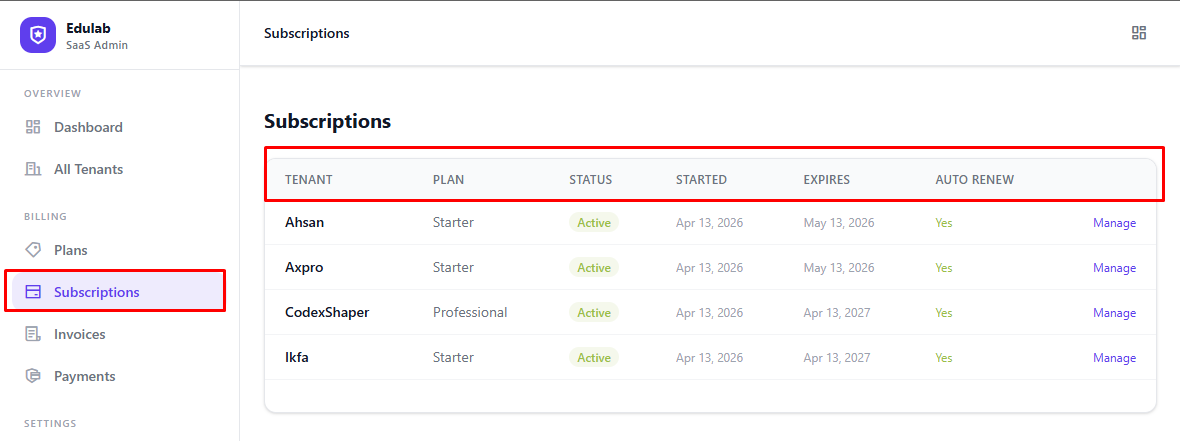
| Column | Description |
|---|---|
| Tenant | Subdomain of the tenant |
| Plan | Subscription plan name |
| Status | Current billing status |
| Period | Current billing period start → end |
| Amount | Subscription price |
| Auto-Renew | Whether auto-renewal is enabled |
| Trial | Trial end date (if on trial) |
Subscription Statuses
| Status | Meaning |
|---|---|
active | Subscription is live and the tenant has full access |
inactive | Subscription has not yet started or was deactivated without a cancel action |
suspended | Subscription is paused — tenant LMS is still accessible to the owner, but restricted |
cancelled | Subscription was deliberately ended — no further charges |
Viewing a Subscription
Click any billing row to open the subscription details.
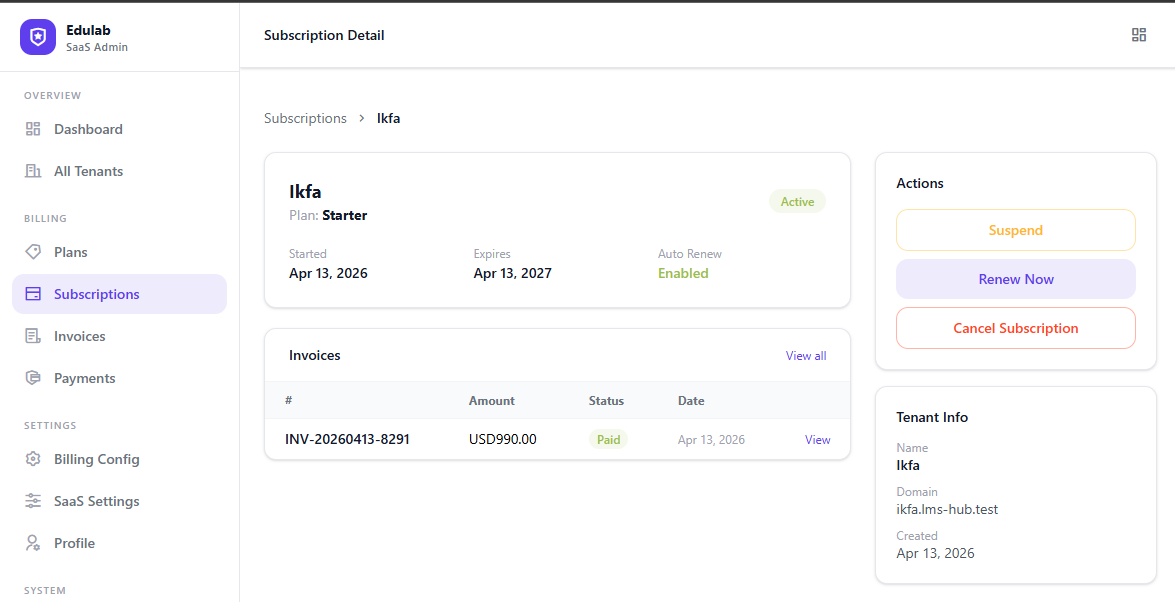
The details page shows:
- Full subscription timeline (created, trial end, period start/end)
- Payment history and invoices
- Subscription actions
Subscription Actions
Suspend
Pauses the subscription. Use this when a payment fails and you want to restrict the tenant's access without cancelling.
Click Suspend on the billing detail page and confirm.
Reactivate
Restores a suspended subscription to active. The billing period does not reset — it continues from where it was.
Click Reactivate and confirm.
Cancel
Ends the subscription permanently. No further charges will be made. The tenant record remains in the system but the billing status becomes cancelled.
Click Cancel and confirm.
Note: Cancelling a subscription does not delete the tenant or their LMS data.
Renew
Forces an immediate renewal of the subscription, extending the current_period_end by one billing cycle. Use this to manually extend a subscription (e.g. after an offline payment).
Click Renew and confirm.
End Trial
Immediately ends a trial period and transitions the subscription to the next state. If a payment method is on file, a charge is attempted. Otherwise, the subscription status depends on your billing settings.
Click End Trial and confirm.
Invoice History on a Billing
From the billing detail view, scroll down to the Invoices section to see all invoices linked to this subscription.
Click any invoice to view it, or see Invoice Management for more actions.
Filtering Billings
Use the filter bar at the top of the billing list to search by:
- Status (active / suspended / cancelled)
- Plan
- Date range (period end)