Invoice Management
Invoices are generated automatically each billing cycle. Admins can also issue invoices manually, mark them as paid, and download PDF copies.
Navigate to Admin → Billing → Invoices.
Invoice List
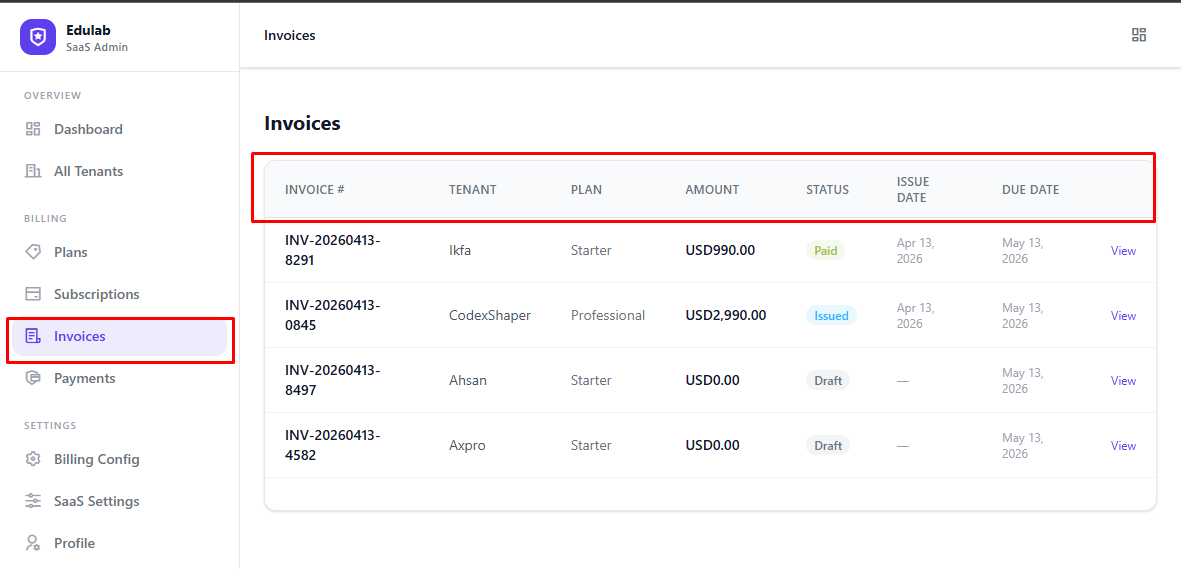
| Column | Description |
|---|---|
| Invoice # | e.g. INV-0042 |
| Tenant | Who this invoice is for |
| Plan | Plan at the time of invoice |
| Amount | Invoice total |
| Status | draft, issued, paid, failed |
| Due Date | When payment is expected |
| Created | When the invoice was generated |
Invoice Statuses
| Status | Meaning |
|---|---|
draft | Invoice created but not yet sent to the customer |
issued | Invoice sent — customer has been notified |
paid | Payment received and confirmed |
failed | Payment attempt failed |
Viewing an Invoice
Click any invoice row to open the invoice detail page.
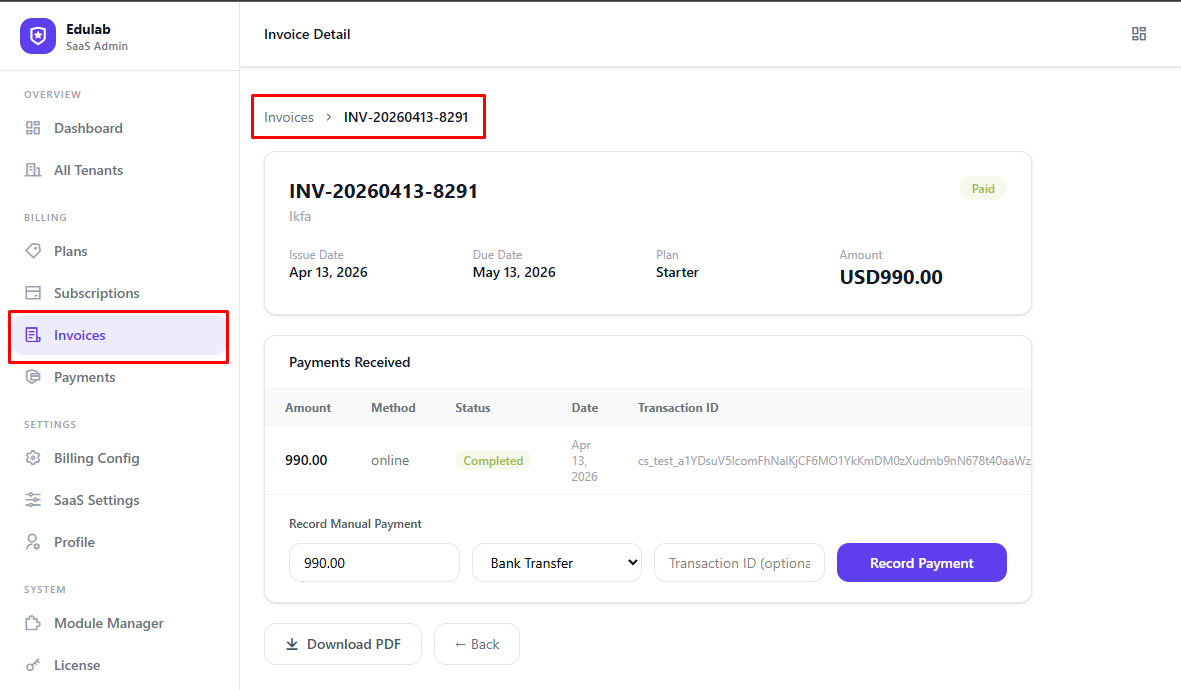
The detail page shows the full invoice with line items, payment gateway used, and linked payments.
Issuing an Invoice
A draft invoice becomes issued once you confirm it and send it to the customer. This triggers an email notification to the tenant owner.
Click Issue Invoice on the detail page and confirm.
Marking an Invoice as Paid
For offline/bank transfer payments that you verified manually, mark the invoice as paid:
Click Mark as Paid on the detail page. This updates the invoice status to paid and activates (or extends) the associated subscription.
Downloading an Invoice (PDF)
Click Download PDF on any issued or paid invoice. A print-ready PDF is generated and downloaded.
Invoices are also available for tenant owners to download from their billing portal at /billing.
Manually Creating an Invoice
To generate an invoice for a subscription outside the normal billing cycle:
- Open the subscription's billing record (Admin → Billing → Billings)
- Click Renew — this creates a new invoice for the next period
- Go to Admin → Billing → Invoices and find the new draft invoice
- Edit and issue it as needed
Invoice PDF Layout
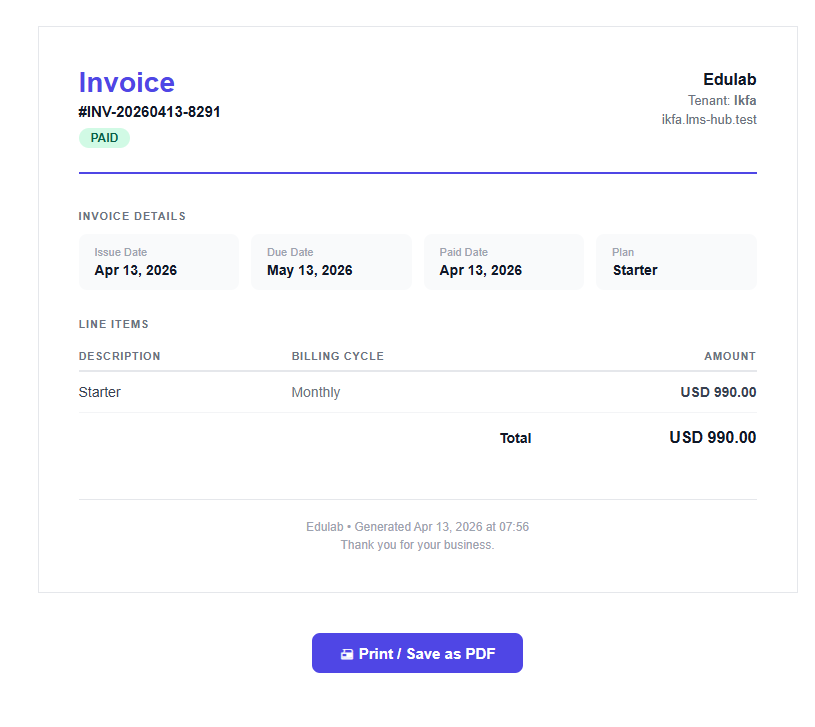
Invoices include:
- Your company name and logo (taken from LMS settings)
- Invoice number, date issued, and due date
- Tenant details (name, email, subdomain)
- Line item: Plan name, billing period, amount
- Payment status
- Footer with your support email
Note: To customise the invoice PDF template, edit
Modules/Tenanta/resources/views/billing/invoice-print.blade.php.